Before a Mutoh printer can be used, the machine needs to be registered. At the end of the registration process, a unique “printer activation code” will be generated. This printer activation code will be requested by the printer during installation. It is important that the registration is done with the information of the end-user and as such a Mutoh Club account needs to be made for your customer.
Do not use your own login credentials as Mutoh dealer for the Mutoh Club !
The warranty period of the Mutoh printer shall start at the date of registration. Correct and complete registration, including product details, name of dealer & complete printer owner details is required to validate the printer warranty.
After registration of the unit, the printer owner will automatically become a member of the Mutoh ValueJet Club and will have access to Mutoh’s proprietary ValueJet Status Monitoring Software (VSM). VSM will enable a printer user to remotely monitor his printer from a portable device. At the same time, the printer owner will get a notification e-mail from Mutoh Belgium to register as a Premium Member at mutoh.eu, to have access to added value features such as our free online ICC profile library, drivers, user’s guides, application tips, etc…
Important Notes :
|
Below steps describe the registration process of a Mutoh printer by the Authorised reseller:
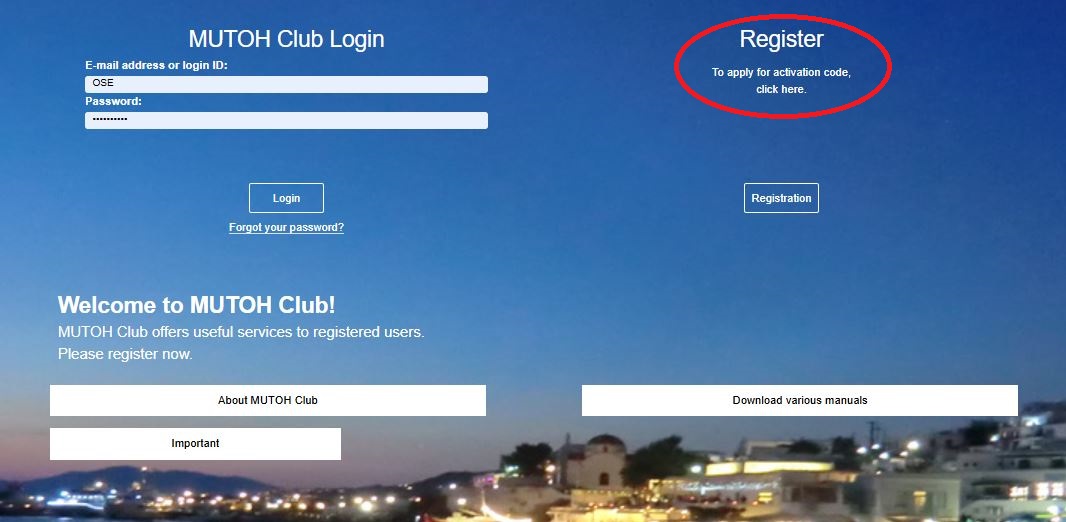
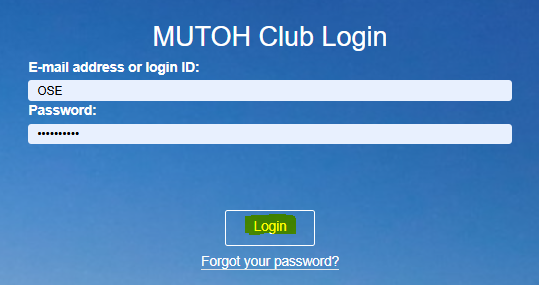
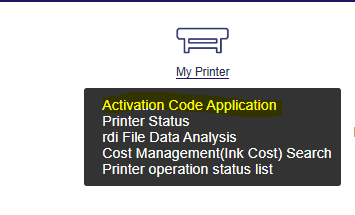
- Click <here> to enter the activation page on the website and after logging-in, click on below image to register/login at the Mutoh Club (@ Mutoh Japan).

- The Mutoh authorized reseller registers the Mutoh printer & fills out thby selecting “REGISTER” on the starting page of the MUTOH Club.
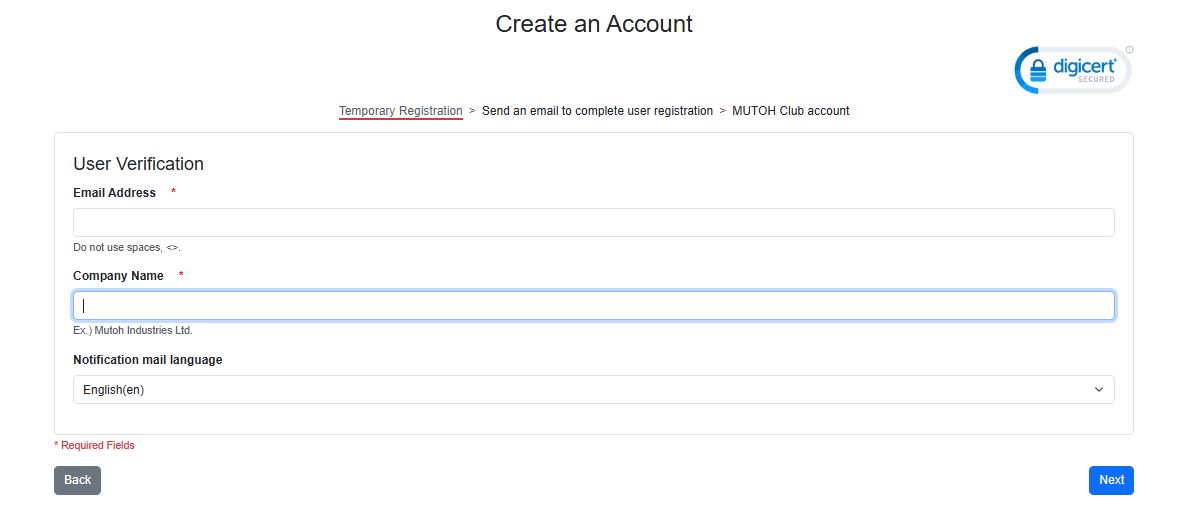
3. Create an account for the end-user by using the end-users email address:
4. Confirm your entry:

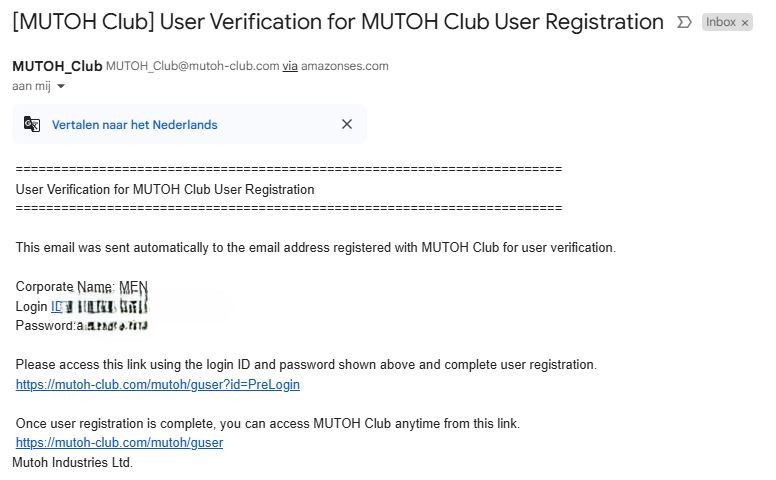
5. Check the mailbox for the Verification mail and click the second link in this mail to complete the registration.
Use the login and pasword as given in this mail.
The password can be changed on the actual registration form.
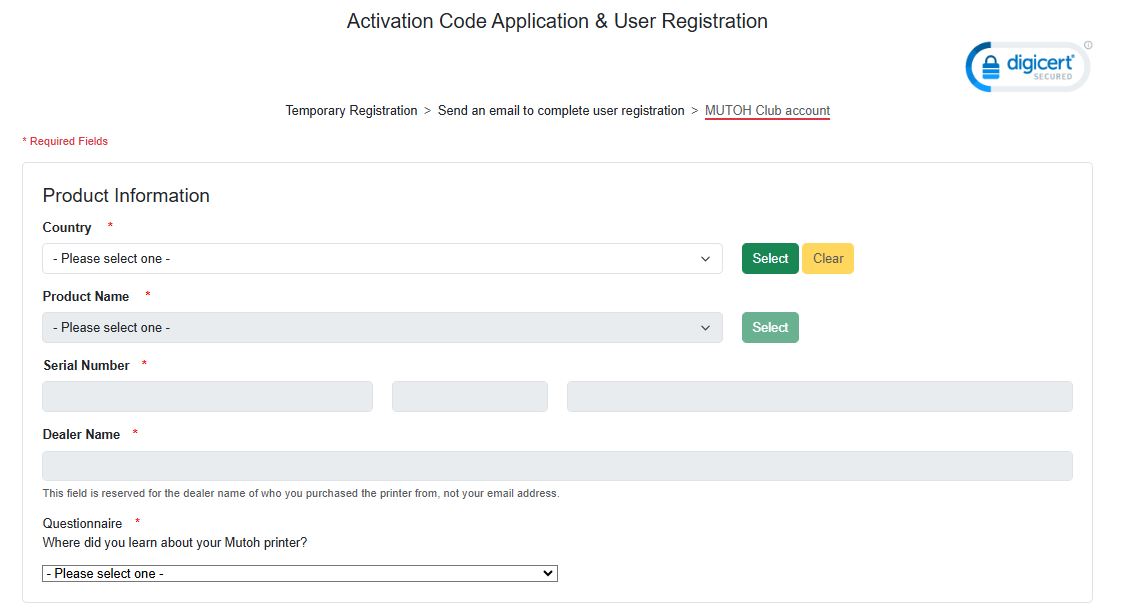
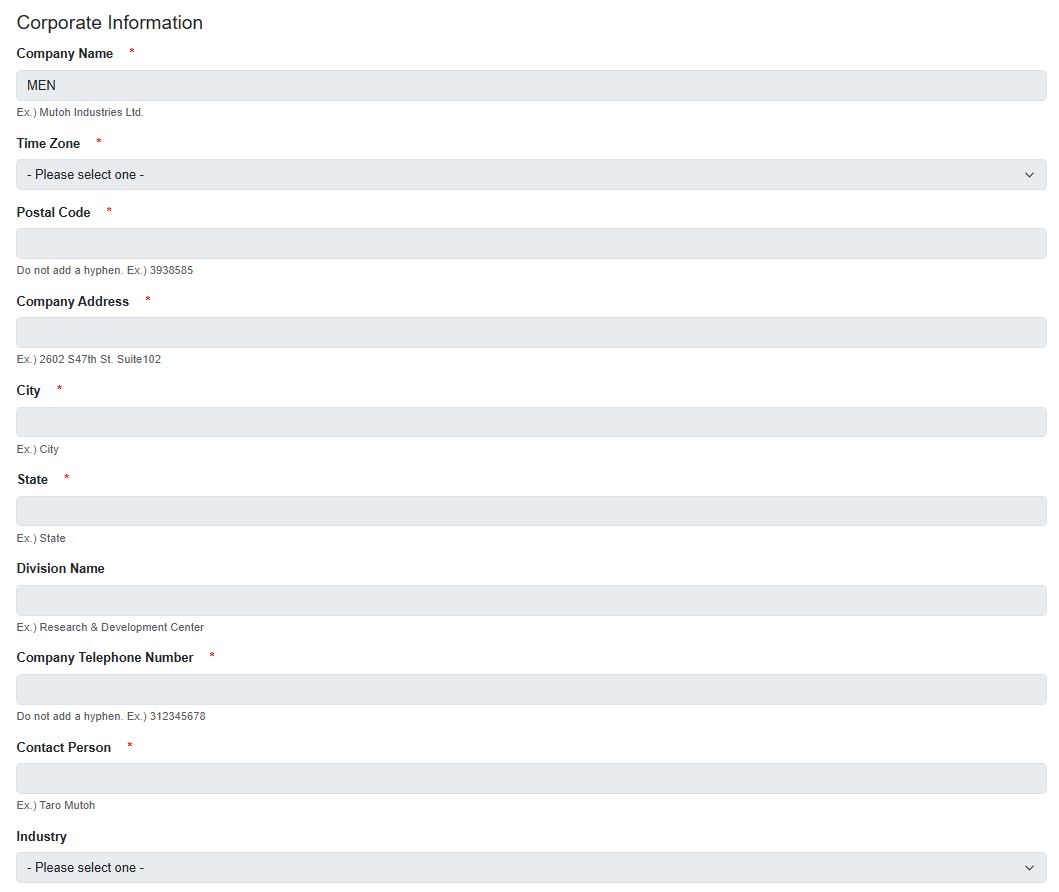
6. Fill out the ‘Product information, User Information’ & ’Corporate Information’ records (= company details of the Mutoh printer owner !) together with the Mutoh printer owner.
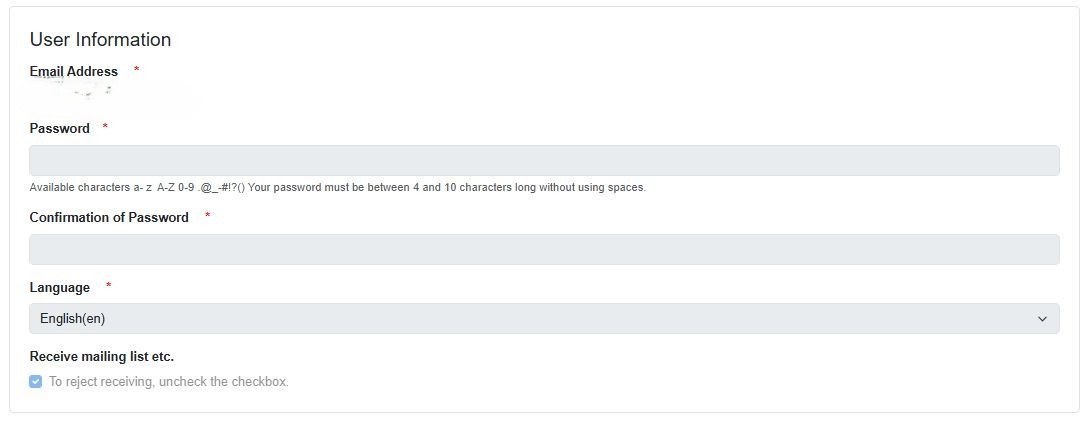
IMPORTANT: password must be compliant to :

7. To finalise the registration, AGREE to the notes and confirm by clicking on REGISTRATION.
9. A new window will appear, providing you the Unique Activation Code.
Automatically, a confirmation e-mail with the unique activation code will be sent to the e-mail address of the Mutoh printer owner. At the same time, the printer owner will become member of the Mutoh Club.

Article changes
Rev. 1.0: Initial version
Rev. 1.1: 26/04/2018 - Added info for registering more than 1 printer with the same e-mail account
Rev. 1.2: 14/11/2018 - Adapted step 2, 3 and step 4 with new login, privacy and select confirmation notifications
Rev. 1.3: 23/01/2024 - revised
Rev. 1.4: 13/11/2024 = New MUTOH Club look
Was this article helpful?
That’s Great!
Thank you for your feedback
Sorry! We couldn't be helpful
Thank you for your feedback
Feedback sent
We appreciate your effort and will try to fix the article