This article explains how to use Dummy (Virtual) Printers with VerteLith D&M for demo and driver evaluation purposes. It is based on VerteLith v7.3; later versions may differ slightly.
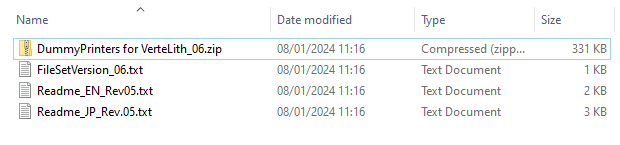
TABLE OF CONTENTS
- Overview
- Where to find the tool
- Important security note
- How to use
- Limitations & behavior
- Terms of use
- Version note
Overview
Dummy Printers (also called Virtual printers) can be installed in VerteLith without a physical printer connected. They make the driver available inside your D&M VerteLith for demonstration or evaluation of the driver’s user interface and job setup. Printing and live status retrieval are not available.
Where to find the tool
Inside the downloaded installation folder of your VerteLith D&M package, locate the folder named Dummy Printers. This folder contains the support tool for VerteLith Dealer & Maintenance.
Important security note
Firewall/antivirus tools may flag or block this utility.
• If a confirmation dialog appears after selecting a printer/ink set, choose “Allow.”
• If it is blocked silently, unzip the package again and add the utility to your firewall/AV exceptions before launching.
How to use
- Close VerteLith.
- Launch the tool: double-click
DummyPrinterMenu.exe.- The app opens (first run may take a moment).
- Select a printer model and an ink set.
- A Command Prompt window starts—leave it open.
- Open VerteLith and add the dummy printer:
- Click Add a printer.
- Enter your license details and click Next.
- Click Find Printer.
- The dummy printer appears with serial number
xxx999999. - Select it and click Next to finish adding.
- After the printer is added, you can close the Command Prompt.
Limitations & behavior
- The “Dummy Printers” tool is used only to assist printer registration within VerteLith.
- You may register up to the maximum number of printers allowed by VerteLith, but only one unit per model.
- No printing is possible with dummy printers.
- Printer status cannot be obtained.
Terms of use
- You must already have and use a VerteLith Dealer & Maintenance license.
- Delete the tool as soon as your D&M license expires.
- Use is intended solely for registering required printers to improve VerteLith operational skills or to support end users.
Version note
This guide is based on VerteLith v7.3. Folder contents shown in the screenshot are from Rev.05 (2022/02/15). For the latest files and structure, please refer to the “Dummy Printers” folder inside your current VerteLith D&M installation package.
Was this article helpful?
That’s Great!
Thank you for your feedback
Sorry! We couldn't be helpful
Thank you for your feedback
Feedback sent
We appreciate your effort and will try to fix the article