Problem:
During the roll-out of periodic forced Windows 10 updates by Microsoft, it may occur that USB driver-software of the KONA cutting plotters is automatically removed or disabled, rendering the equipment inadvertently out of use.
Note:
If the build number of your Windows 10 installation (start > type ‘winver’) is version 1607 or higher, the ‘10 th anniversary update’ was already automatically installed on your computer where this issue may occur.
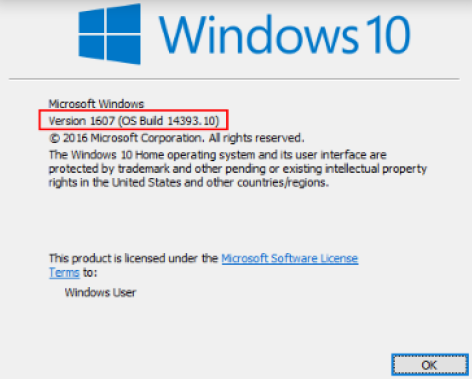
The USB software drivers for Kona are officially approved for Windows 7 only. They should also be usable on Windows 8.1 and Windows 10 systems. In order to able to do so however, you need to “force” the driver into Windows 8 or higher. This is the case because the latest Windows 10 update forces manufacturers to integrate a digital signature in order to avoid tampering and malware from doubtful 3rd party sources.
Our drivers are currently not containing a digital signature. Therefore it’s strongly recommended only to download and use the drivers, uniquely provided by the website of Mutoh Belgium. As a registered user on our website, you will be able to obtain free access to all the software and drivers for your equipment.
How to proceed:
- Once logged-in, KONA drivers can be downloaded from the link https://mutoh.eu/en/support/user-software-drivers in the following location:
Cutters >> USB drivers for Ultima - Sc-Pro - Kona - Kona Apparel - Unzip the drivers into a folder on your computer.
- Plug in the USB cable of the Kona cutting plotter. Check the device-manager of Windows 10 by pushing the start button to open the start menu and type the following:
devmgmt.msc
And press <Enter>. Alternatively you can right-click “Computer > Properties > Device manager” - If Microsoft has put the driver out of use, you should see something similar like this:
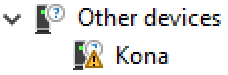
- Reinstalling the driver in Windows 10 will not work without disabling the ‘Driver signature requirement’, enforced by Microsoft. To be able to install the driver, please proceed as follows:
Press the left <shift>-button on your keyboard. While holding down the <shift> button, perform a ‘Restart’ in Windows 10. Keep holding <shift>, until you get the following boot-options menu: Release <shift> and click the middle-option ‘Troubleshoot’: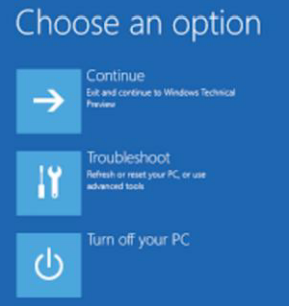
Choose Advanced Options: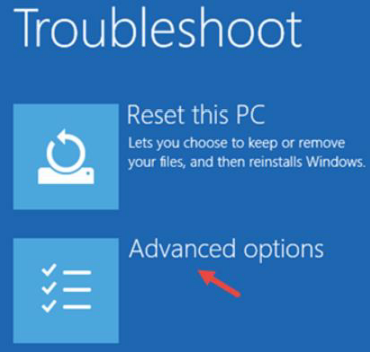
Choose Startup Settings: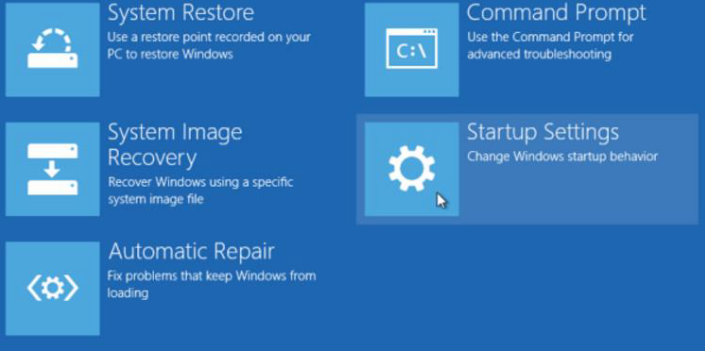
Choose 7. Disable driver signature enforcement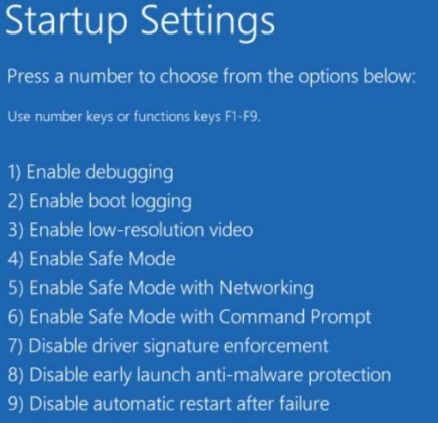
And finally, click the ‘restart button’… - After restarting Windows 10, go back to the device manager by pushing the start button. Type the following:
devmgmt.msc
And press <Enter>. - Select again and right-click the Kona-device with the missing driver:
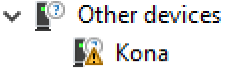
- Choose Update driver:
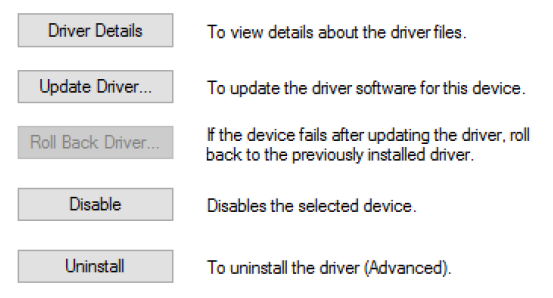
- Browse for the driver location on your computer-folder, where you have unzipped them:
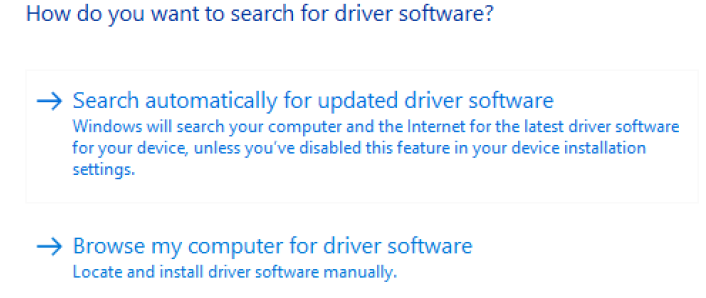
- Open de folder where the drivers are located, click ok. You will get the following notification:
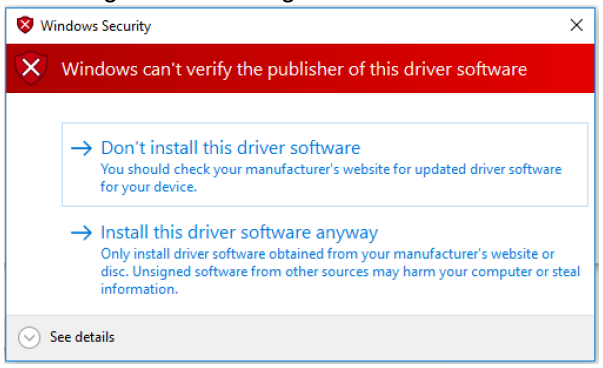
Choose the 2nd option: “Install this driver software anyway” - Another ‘unknown’ device might appear in your device-manager:
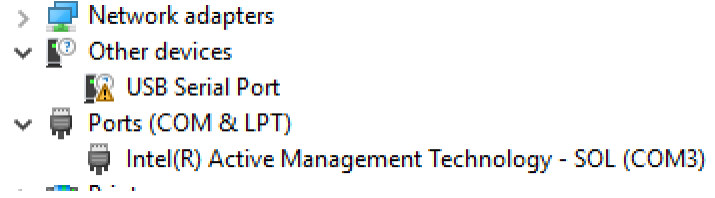
- Repeat the previous steps, using the same folder-location where you unzipped the drivers (See step 2)
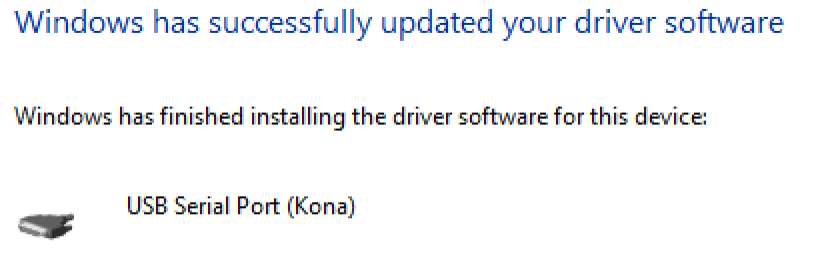
- If each driver is properly installed, you should get the following notification:
- To verify if the installation of the Kona cutting plotter is properly done, there should be no more exclamation mark near the following 2 devices inside ‘device manger’:
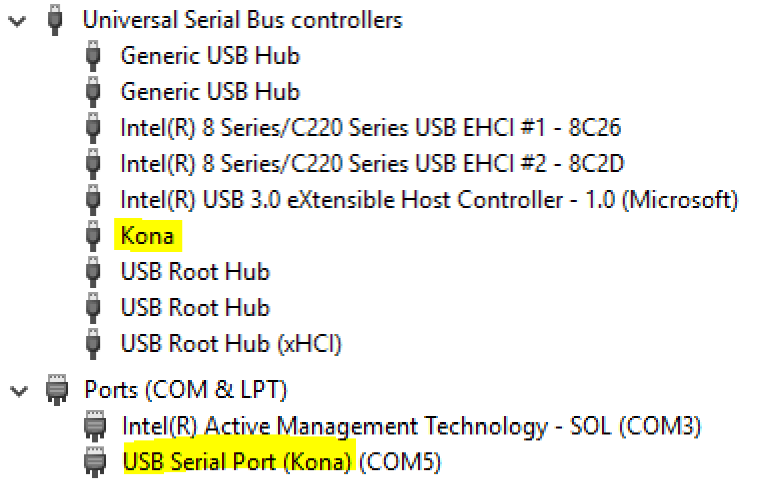
If there are no exclamation marks near the following 2 marked devices:
... then your Kona driver is properly reinstalled! - Reboot your computer again to switch to normal mode.
Was this article helpful?
That’s Great!
Thank you for your feedback
Sorry! We couldn't be helpful
Thank you for your feedback
Feedback sent
We appreciate your effort and will try to fix the article