TABLE OF CONTENTS
- Advised Daily Maintenance Scheme
- Daily Maintenance Overview
- WIPER CLEANING
- CLEANING AROUND THE PRINT HEADS
- CLEANING AROUND THE CAPPING UNIT & FLUSHING BOX SPONGE
- Maintenance & consumable replacement without specific fixed scheme.
Advised Daily Maintenance Scheme
To keep your printer in perfect shape, it is important to follow the maintenance guidelines. Performing preventative maintenance on the machine improves the longevity of the ink delivery system parts and assists in the optimum performance of the machine together with the ink.
Frequency: Daily at the end of a production day
- Cleaning the wiper.
- Cleaning the capping rubbers in the maintenance station.
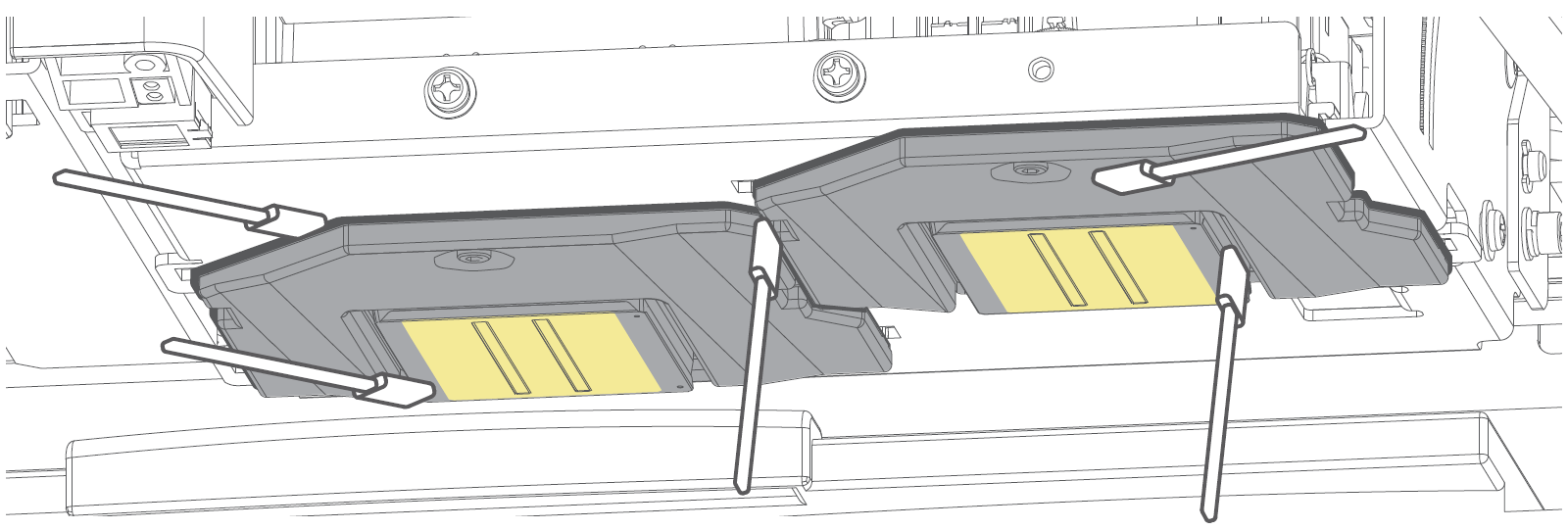
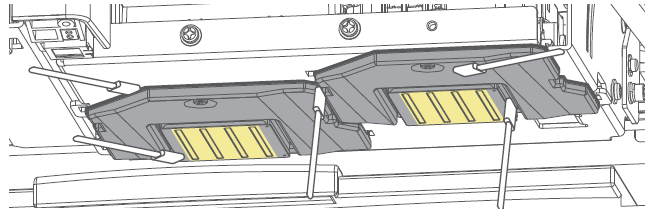
- Cleaning edges of the printhead faceplate.
- Flush the caps in the maintenance station.
- Rinse away ink remainders from the spitting box sponges.
Important:
|
Daily Maintenance Overview
Required items:
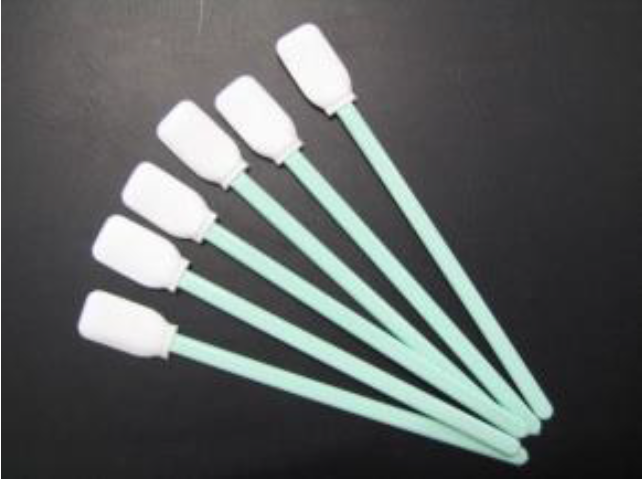
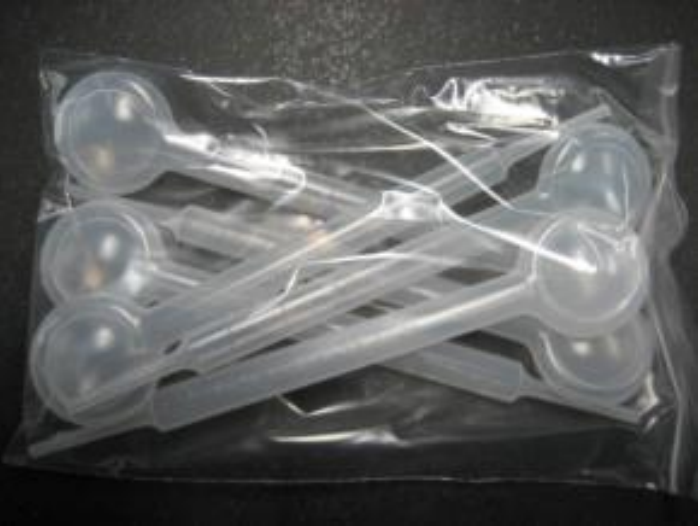
Cleaning sticks - RH2-CLEAN-STICK | Droppers – 1U021001 – Dropper 6 Pack Set | ||
|
| ||
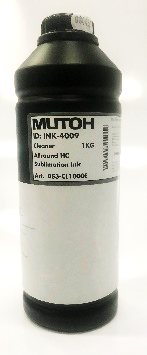
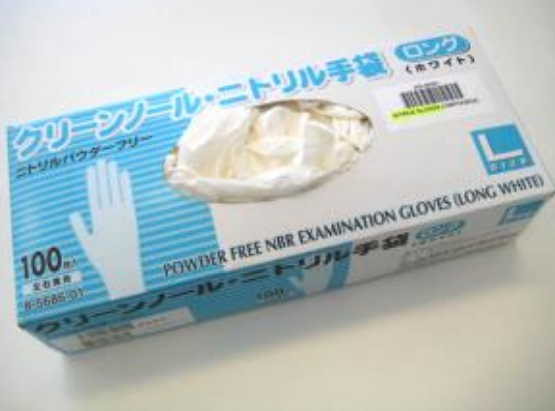
DS3/DS4 Cleaning liquid: DS3-CL1000E | Nitrile Gloves: DH-40162 or PJ-GLOV (or alike) | ||
|
| ||
Important:
| |||
Step | Display | Touch Panel Action and/or Activity | |
| Tap “Home”
| ||
XPJ-1642WR & XPJ-1682WR
XPJ-1682SR-DSP
| XPJ-1642WR & XPJ-1682WR Tap <Arrow Right> and proceed to step 3.
XPJ-1682SR-DSP Tap <Arrow Down> until the Menu
Proceed to step 4. | ||
XPJ-1642WR & XPJ-1682WR
| Tap <Arrow Down> until the Menu
| ||
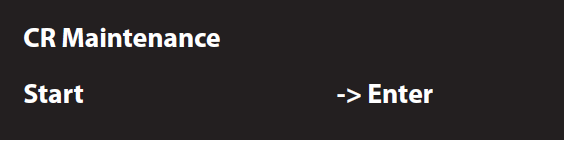
| Tap <Enter>
| ||
|
| ||
| Open the front cover. | ||
|
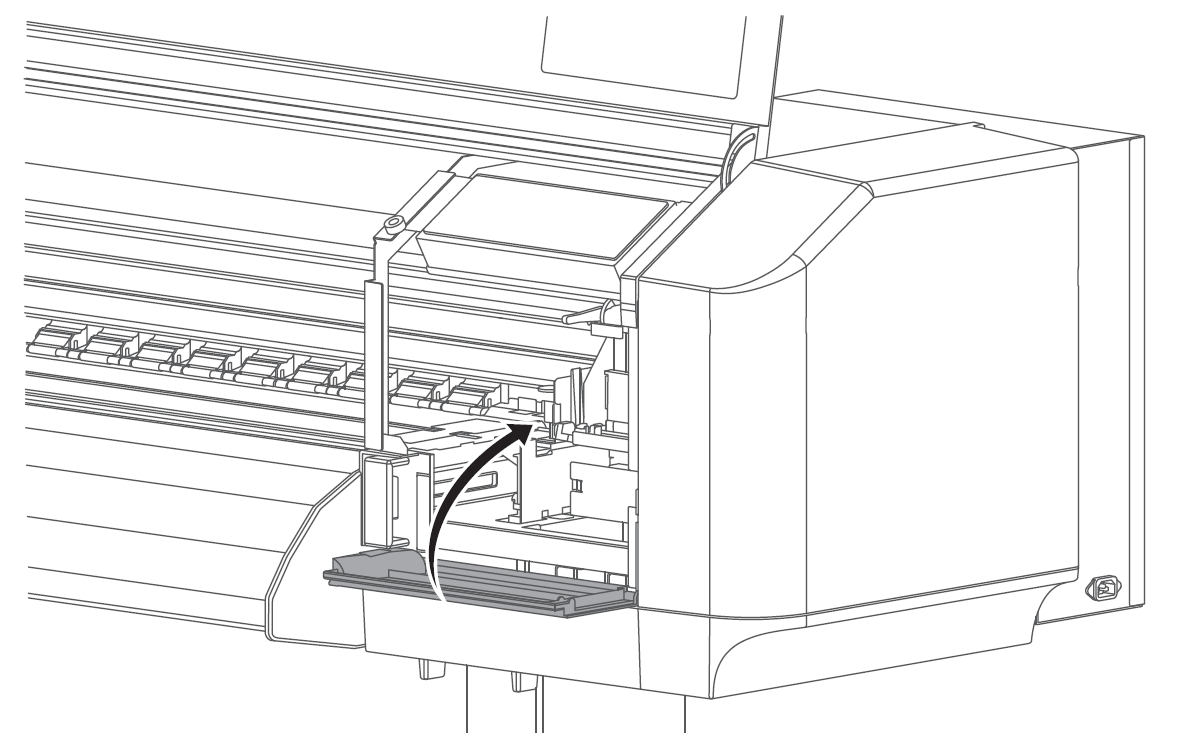
| Open the right maintenance cover. | |
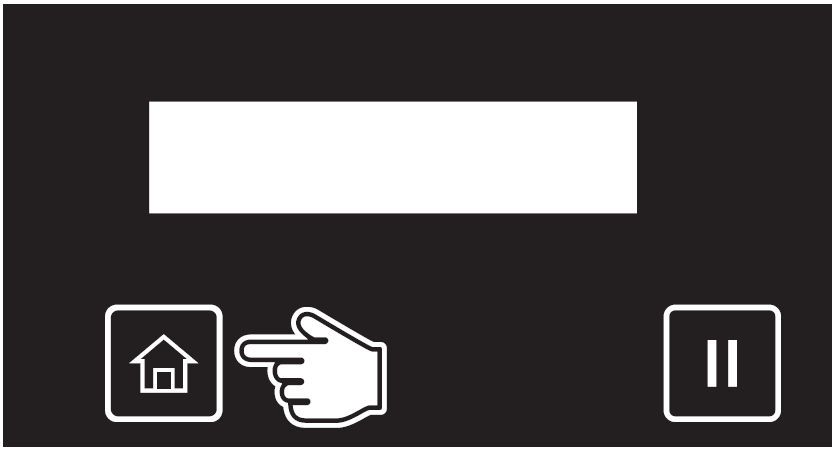





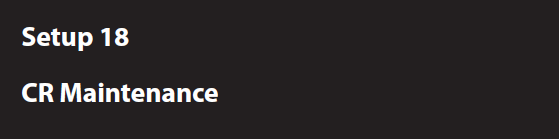


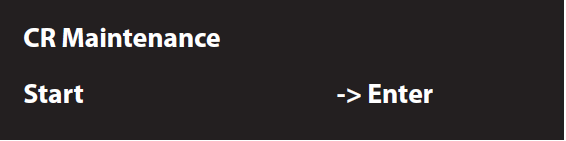

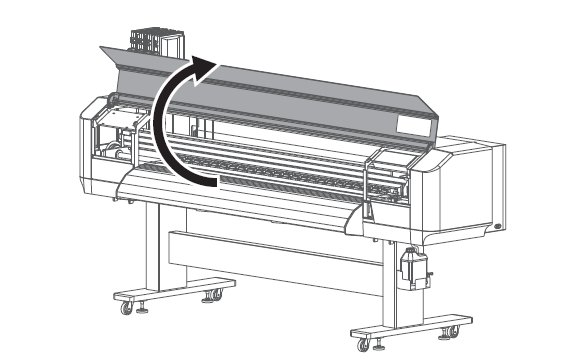
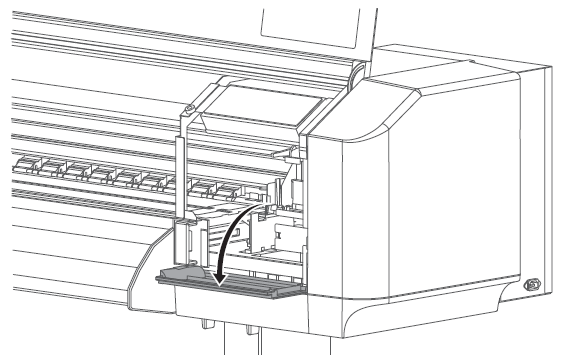
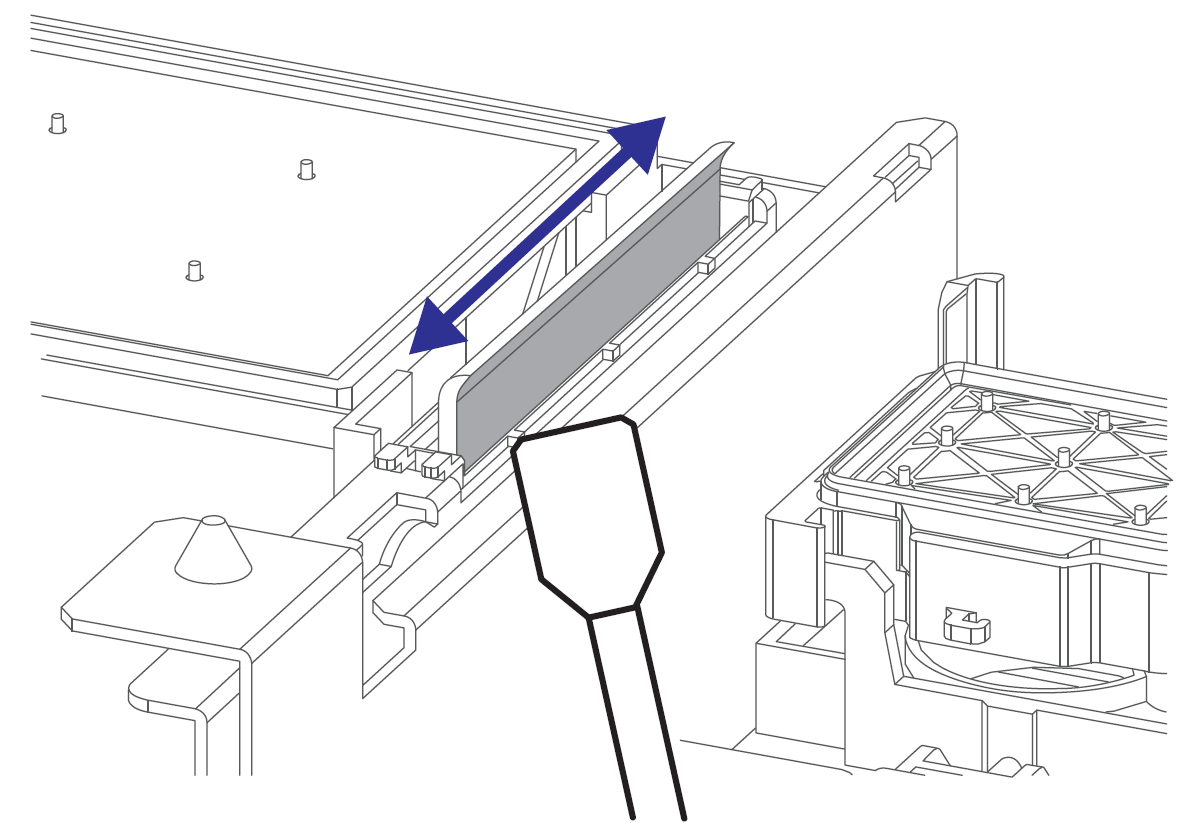
WIPER CLEANING | |||
| XPJ-1642WR | XPJ-1682WR | XPJ-1682SR-DSP
|
| Wipe the left side of the wiper back and forth using a cleaning stick moistened with some cleaning fluid (DS3-CL1000E). | ||
| |||
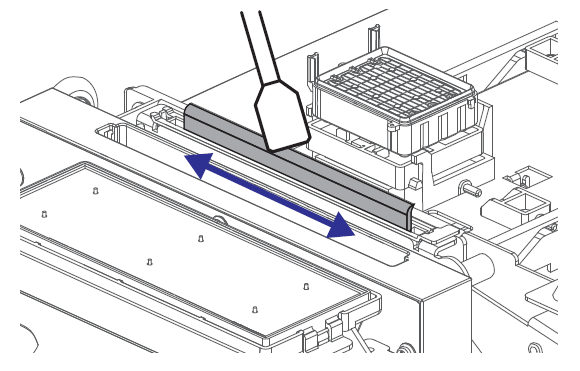
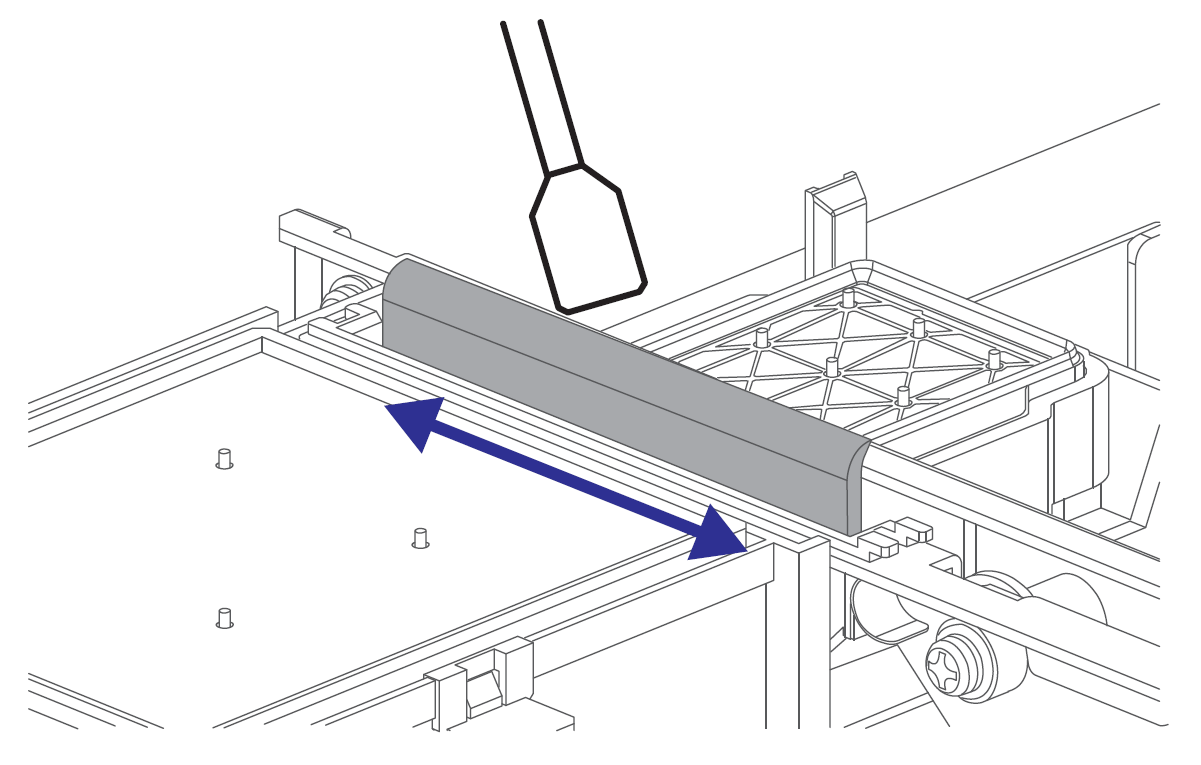
| XPJ-1642WR | XPJ-1682WR | XPJ-1682SR-DSP
|
| Wipe the right side of the wiper back and forth using a cleaning stick moistened with some cleaning fluid (DS3-CL1000E). | ||
CLEANING AROUND THE PRINT HEADS | ||||
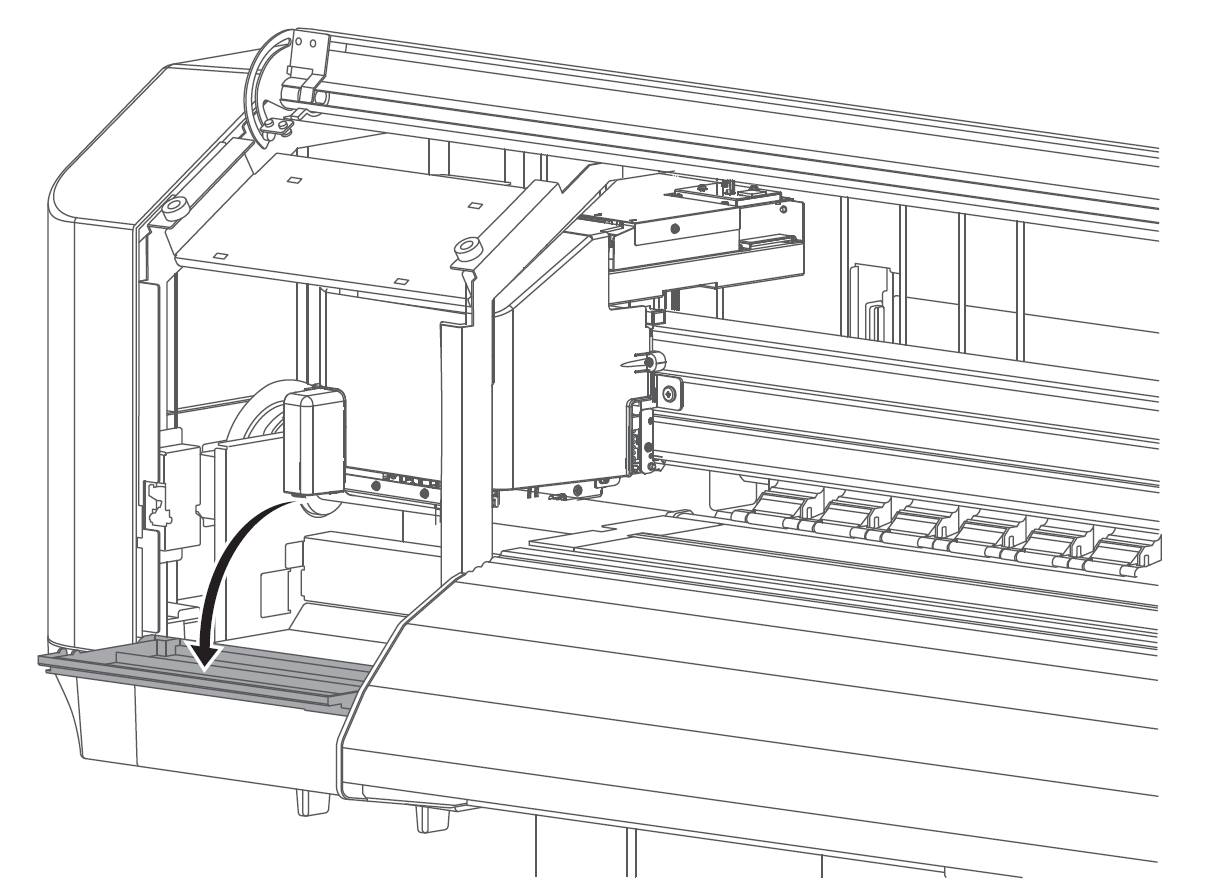
|
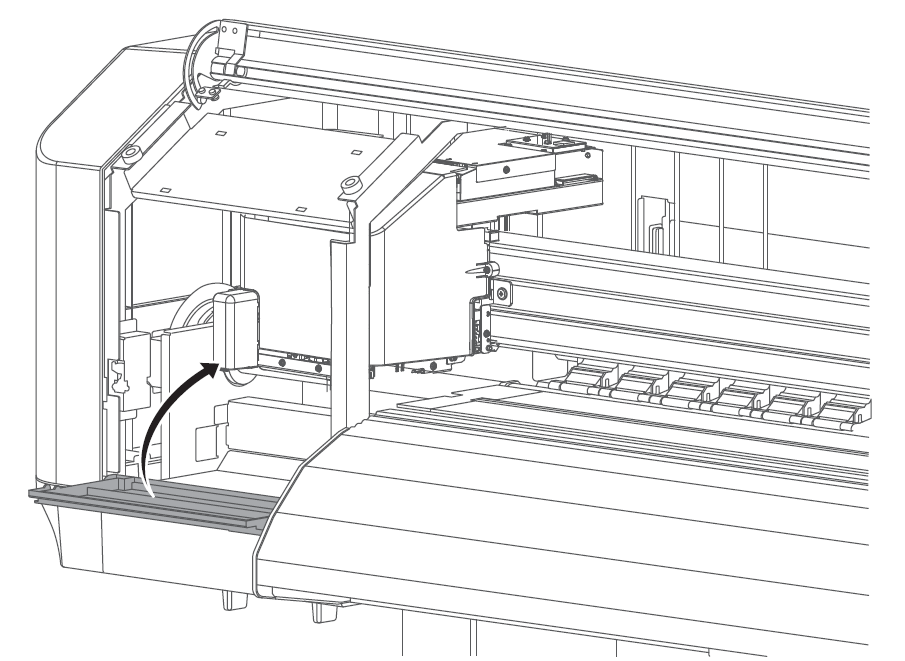
| Open the left maintenance cover. | ||
XPJ-1642WR |
| |||
| XPJ-1642WR Model | |||
|
|
| ||
| XPJ-1682WR |
| ||
|
| |||
|
|
| ||
| XPJ-1682SR-DSP |
| ||
|
| |||
|
|
| ||
| ||||
| ||||
| ||||




CLEANING AROUND THE CAPPING UNIT & FLUSHING BOX SPONGE | |||
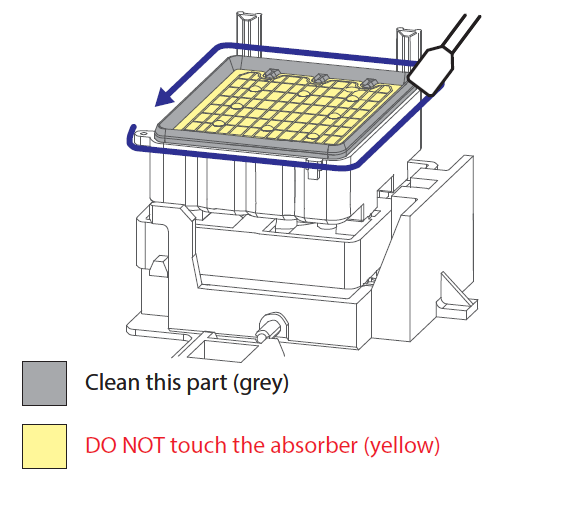
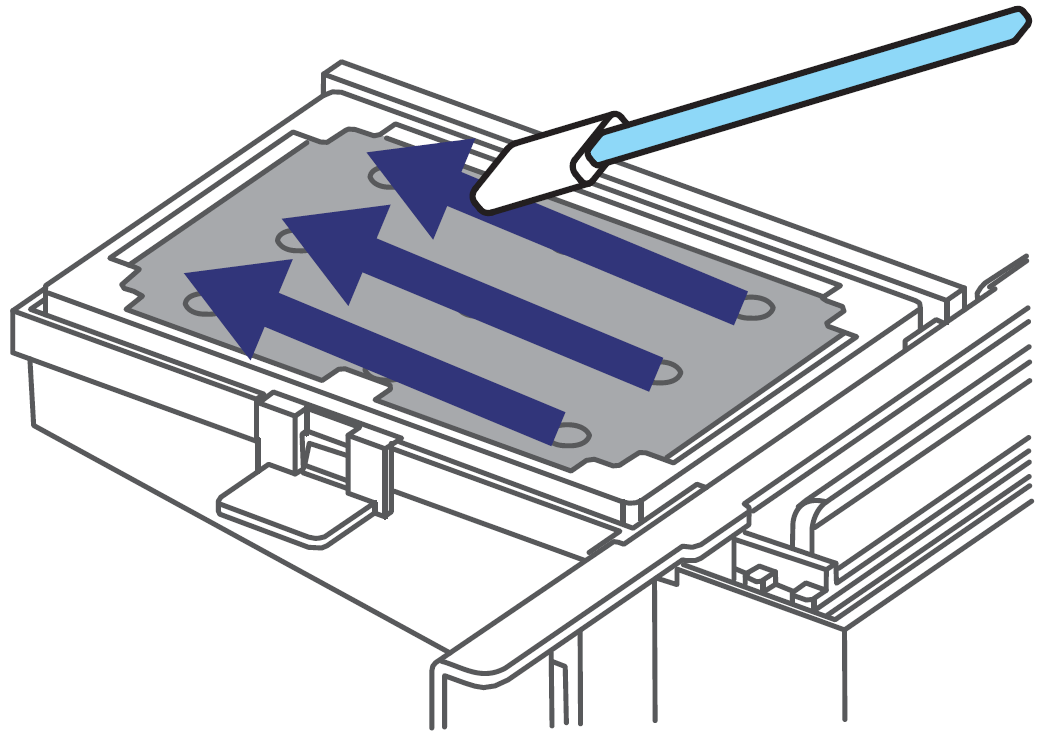
| Use a cleaning stick moistened with some cleaning fluid (DS3-CL1000E) to clean around the capping rubber of each capping unit to remove ink remainders and dust. | ||
|
| Tap the “Down Arrow” to activate the capping station pumps to evacuate ink/cleaning liquid. | |
|
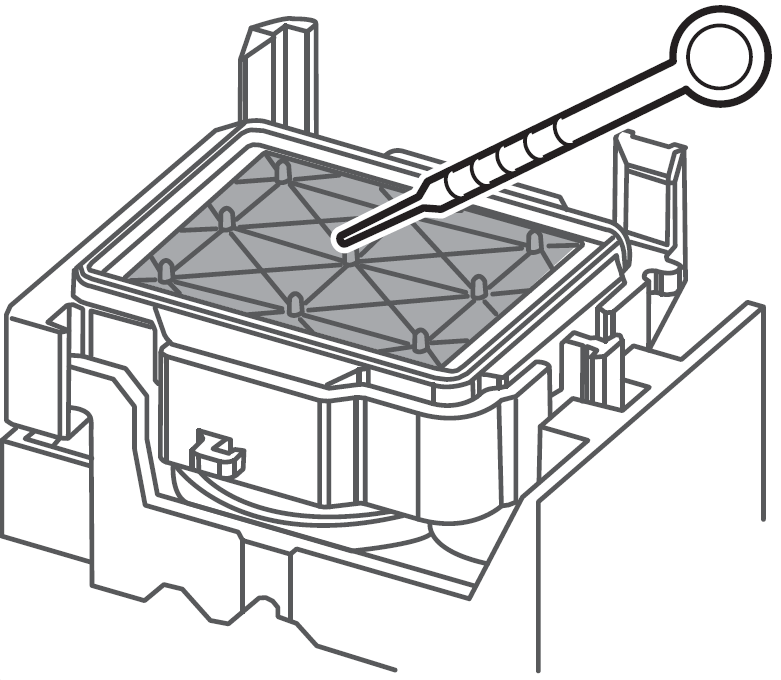
| Using a dropper, moisten the capping units with some cleaning fluid (DS3-CL1000E). | |
|
|
| |
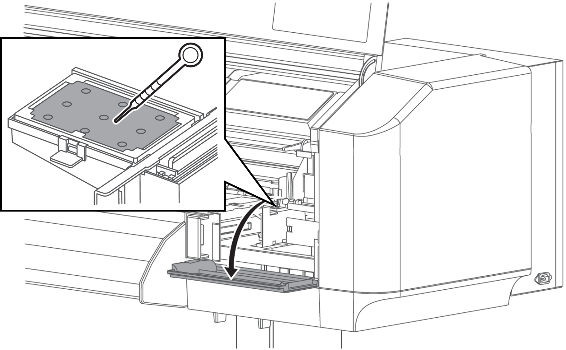
| To extend the longevity of the flushing box sponge, it is recommended to moisten it with some maintenance cleaner. | ||
| Use a cleaning stick to clean the complete area of the spitting box sponge.
After some time, the sponge will be completely saturated and the ink is no longer absorbed. At that time, the sponge needs to be replaced. | ||
| Close the left maintenance cover. | ||
| Close the right maintenance cover. | ||
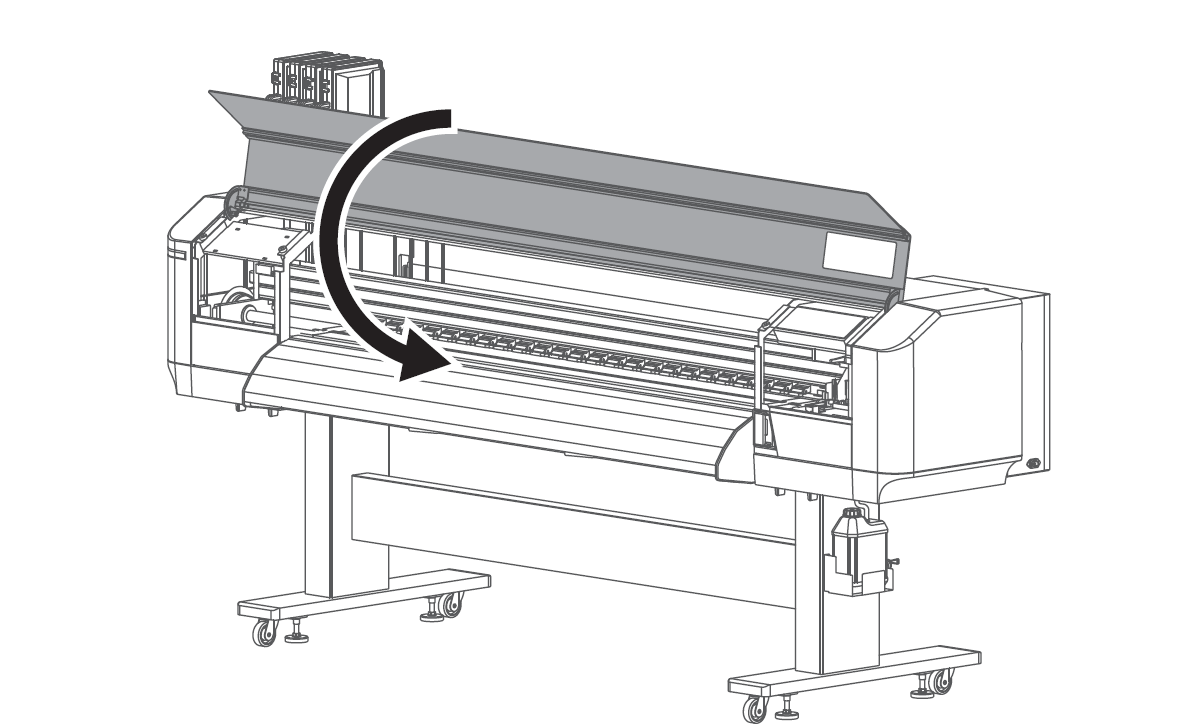
| Close the front cover. | ||
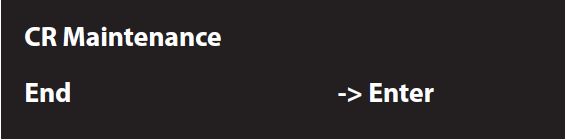
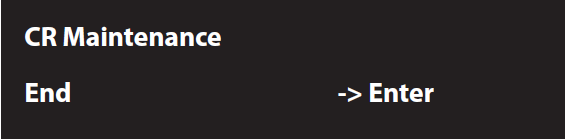
| Tap <Enter>.
| ||
| Tap “Home” to end the maintenance process.
| ||




Maintenance & consumable replacement without specific fixed scheme.
Details on how to perform these maintenance & consumable replacements can be found in the XPJ-1642WR / XPJ-1682WR / XPJ-1682SR-P (XPJ-1682SR-DSP) Printer Operation Manual.
Maintenance | When to perform & Required parts | ||
Clean the lens of the colour sensor. |
| ||
Replace the flushing pad / spitting box sponge. |
| ||
Replace the cutter blade. |
| ||
Replace the exhaust fan filters. |
| ||
|
|
| |
|
|
| |
Fresh Filter | Still OK | Replacement Required | |
Replace the wiper blade | Situations requiring wiper replacement:
Wiper part numbers: XPJ-1642WR:
XPJ-1682WR: Replaceable wiper in holder VJ1638UH-WIP (2 pieces/box) XPJ-1682SR-DSP: Replaceable wiper IJ-RWPS-01 (2 pieces/box) XPJ-1341WR-P: Replaceable wiper IJ-WIP-02 (2 pieces/box) | ||
Was this article helpful?
That’s Great!
Thank you for your feedback
Sorry! We couldn't be helpful
Thank you for your feedback
Feedback sent
We appreciate your effort and will try to fix the article