There are 3 ways to add profiles to VerteLith:
- Downloading from the Mutoh Club Server
- Manually importing .mpdf files from your HD
- Manually copying .icc and .ssp files in VerteLith's folder structure
Downloading from the Mutoh Club Server
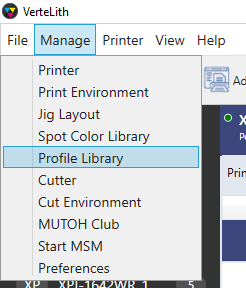
- Open the Profile Library from VerteLith's menu.
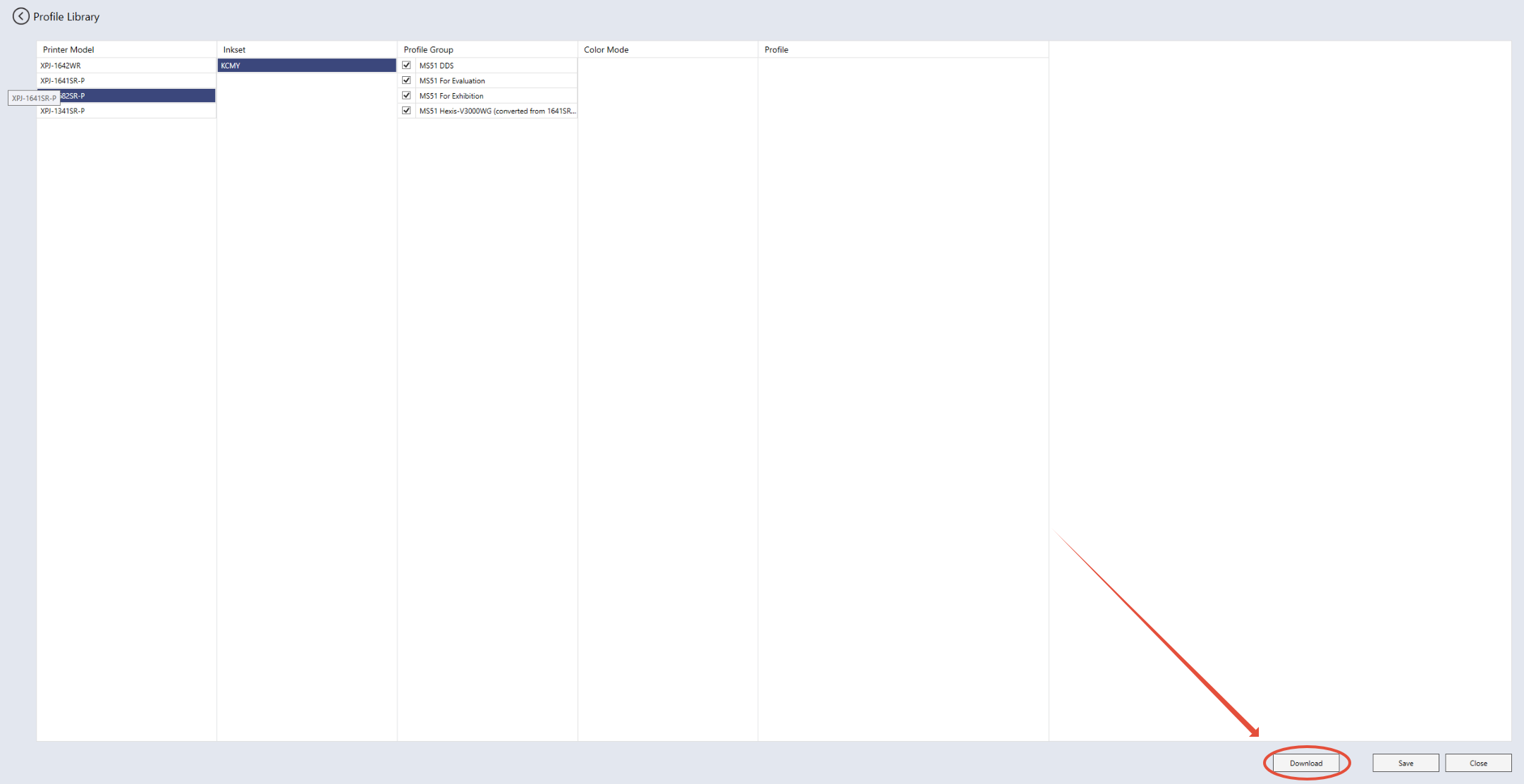
- In the Profile Library, in the lower right corner you'll find the DOWNLOAD button
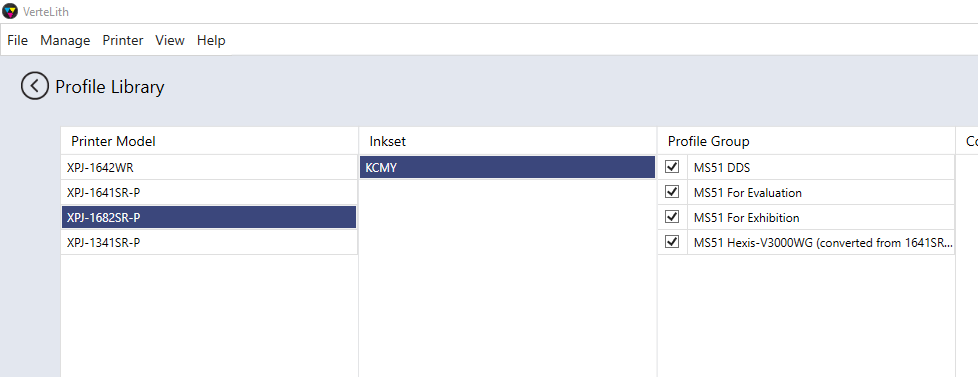
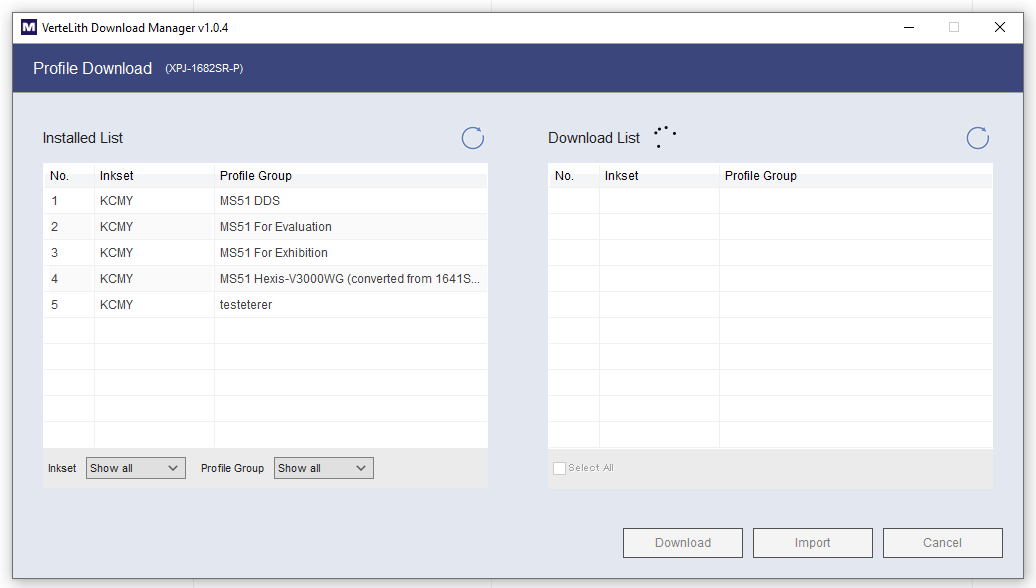
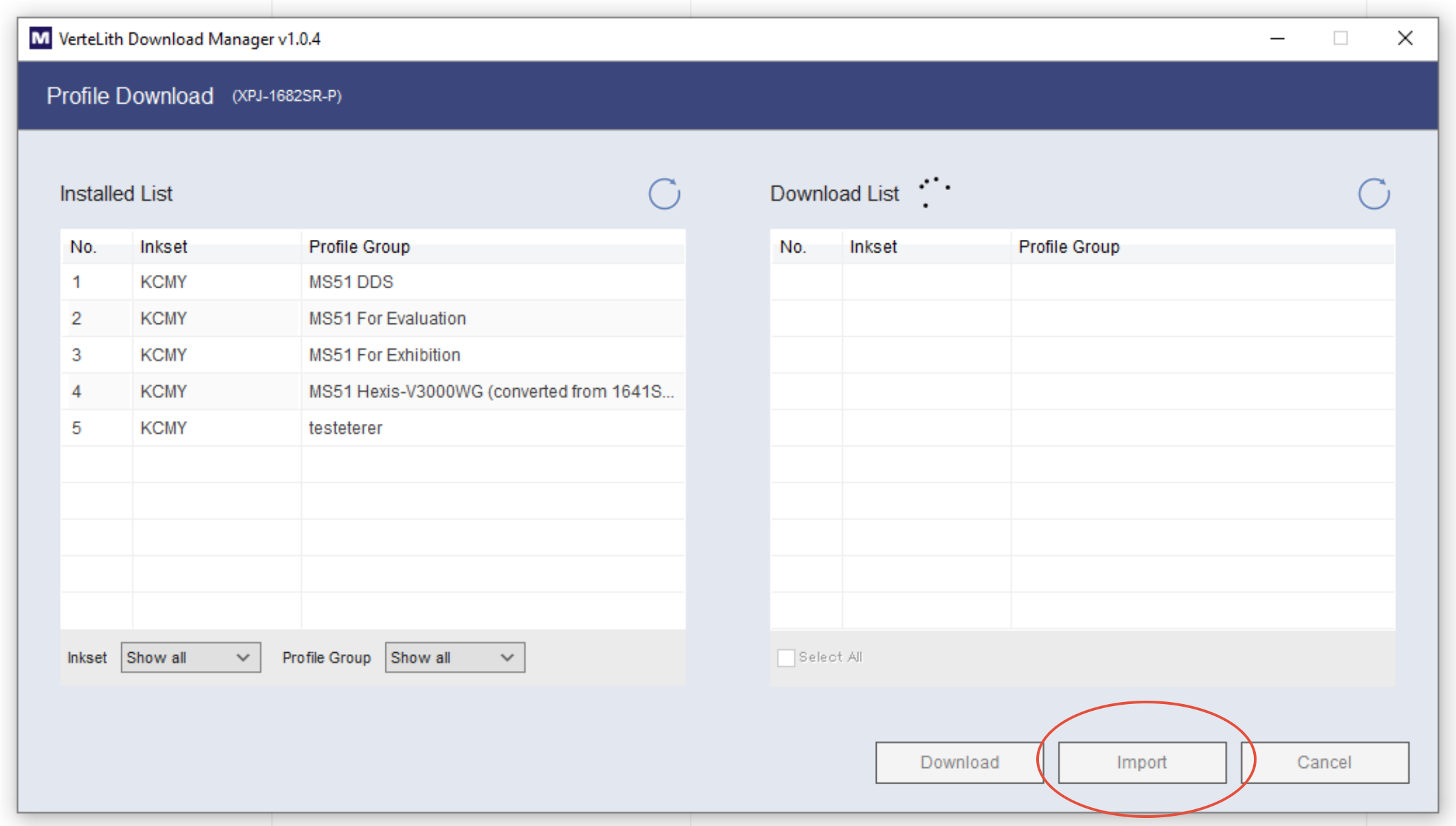
- The Download Manager will pop up and allows you to download profiles directly from the Mutoh Club into your driver.
Manually importing .mpdf files from your HD
The IMPORT button in the Download Manager allows to import .mpdf files from you HD.
Note that the Printer Profiler software can export .mpdf files.
Manually copying .icc and .ssp files in VerteLith's folder structure
In the case you have received .icc and .ssp files from our Support Departments you can copy them directly in the folder structure.
For example:
C:\ProgramData\Mutoh\VerteLith\Profiles\Printer\XPJ-1682
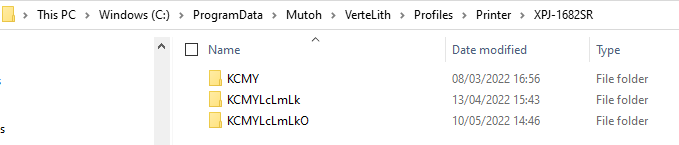
- Make sure to copy your folder into the correct Ink Setup folder.
- Note that the ProgramData folder is hidden by default.
Was this article helpful?
That’s Great!
Thank you for your feedback
Sorry! We couldn't be helpful
Thank you for your feedback
Feedback sent
We appreciate your effort and will try to fix the article