Issue: Double CutContour Lines in RIP Software
When preparing artwork for contour cutting (such as stickers or labels), you add a CutContour line—a special spot color or swatch used to define cut paths for your RIP (Raster Image Processor, in this case VerteLith) software.
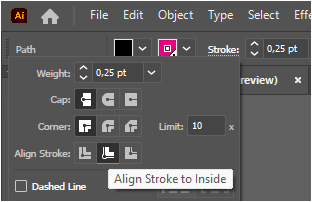
In Illustrator, there are three official stroke alignment options available in the Stroke panel:
- Align Stroke to Center
- Align Stroke to Inside
- Align Stroke to Outside
If you set your CutContour stroke to Align Stroke to Outside (or sometimes Align Stroke to Inside), many RIP software programs will detect two CutContour lines with a very small offset. This happens because Illustrator represents the stroke as a path outline offset from your original path, causing both the original and the offset path to be interpreted as cut lines by the RIP.
This is normal behavior for many RIPs and can cause duplicate cuts or confusion in production.
Solution: Always Use “Align Stroke to Center”
To avoid double cut lines, always set your CutContour stroke to “Align Stroke to Center.” This ensures the stroke sits directly on your path, allowing the RIP to recognize a single, accurate cut line.
- Select your CutContour path in Illustrator.
- Open the Stroke panel (Window > Stroke).
- In the Align Stroke section, choose the center icon.
- Save and export your file as usual.
Tip: In Adobe Illustrator, pressing CTRL+Y (Windows) or CMD+Y (Mac) toggles between Outline View and Preview Mode. Outline View displays only the vector paths of your artwork, hiding colors, fills, and effects—making it easy to spot extra paths, invisible shapes, or overlapping CutContour lines that could cause issues when cutting or printing. Press CTRL+Y again to return to normal preview.
Was this article helpful?
That’s Great!
Thank you for your feedback
Sorry! We couldn't be helpful
Thank you for your feedback
Feedback sent
We appreciate your effort and will try to fix the article