Requirements
To ensure a smooth transition, make sure to address these two key areas:
- Printer Region Code → Determines if the hardware can accept US81 ink.
- Re-registration in VerteLith → Ensures the RIP software detects and utilizes the new ink.
Step-by-Step Procedure
Printer Setup:
- Update firmware to 1.05 (or higher) and VerteLith to 8.6 (or higher).
- Obtain an MPI file from the printer and send it to Mutoh Europe Hardware support.
- Upload the returned ULK file from Mutoh Europe (enables US81 support).
- Obtain a new MPI file and send it again to Mutoh Europe Hardware support.
- Upload the second ULK file (allows ink type change).
- Start the printer in Self-diagnosis mode.
- Go to Parameter > Update > Ink Type and select US81.
- Reboot the printer in self-diagnosis mode, then perform an ink discharge (Adjustment > Ink Discharge).
- Go to Ink Charge > Normal and perform an ink charge with US81 ink and SC cards.
- Reboot the printer in User Mode.
Re-register the Printer in VerteLith:
- In VerteLith, go to Manage > Printer and check the ink type shown in Ink name:
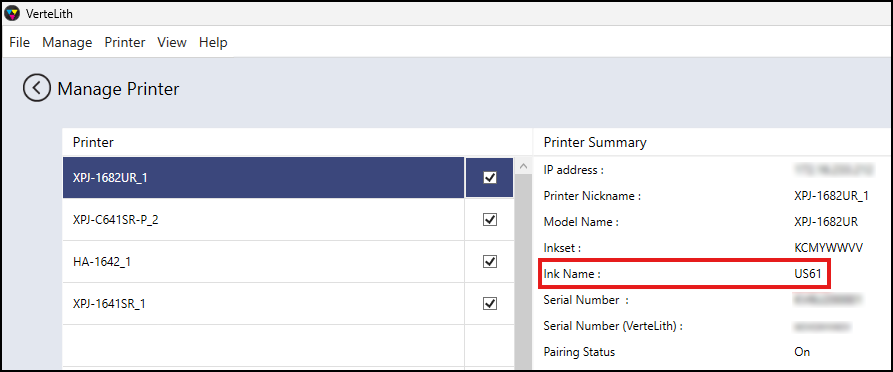
- If it is not US81, follow these steps to re-register:
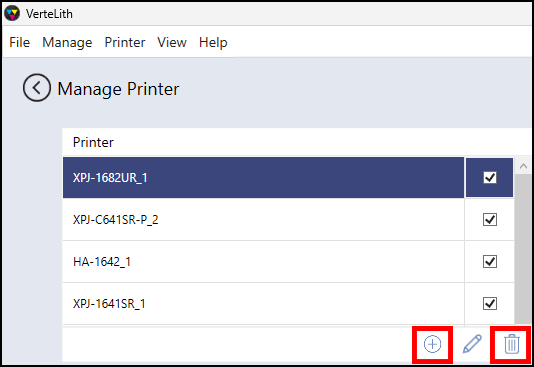
- Delete XPJ-1682UR.
- Re-register the XPJ-1682UR now converted to US81.
Note: Deleting a printer removes all jobs and print environments. - After re-registration, check that US81 appears under Ink Name.
Was this article helpful?
That’s Great!
Thank you for your feedback
Sorry! We couldn't be helpful
Thank you for your feedback
Feedback sent
We appreciate your effort and will try to fix the article